Running and Quitting
Overview
Teaching: 15 min
Exercises: 0 minQuestions
How can I run Python programs?
Objectives
Launch the Jupyter Notebook, create new notebooks, and exit the Notebook.
Create Markdown cells in a notebook.
Create and run Python cells in a notebook.
Python programs are plain text files.
- They have the
.pyextension to let everyone (including the operating system) know it is a Python program.- This is convention, not a requirement.
- It’s common to write them using a text editor but we are going to use the Jupyter Notebook.
- The bit of extra setup is well worth it because the Notebook provides code completion and other helpful features.
- Notebook files have the extension
.ipynbto distinguish them from plain-text Python programs.- Can export as “pure Python” to run from the command line.
Use the Jupyter Notebook for editing and running Python.
- The Anaconda package manager is an automated way to install the Jupyter notebook.
- See the setup instructions for Anaconda installation instructions.
- It also installs all the extra libraries it needs to run.
-
Once you have installed Python and the Jupyter Notebook requirements, open a shell and type:
$ jupyter notebook - This will start a Jupyter Notebook server and open your default web browser.
- The server runs locally on your machine only and does not use an internet connection.
- The server sends messages to your browser.
- The server does the work and the web browser renders the notebook.
- You can type code into the browser and see the result when the web page talks to the server.
- This has several advantages:
- You can easily type, edit, and copy and paste blocks of code.
- Tab complete allows you to easily access the names of things you are using and learn more about them.
- It allows you to annotate your code with links, different sized text, bullets, etc. to make it more accessible to you and your collaborators.
- It allows you to display figures next to the code that produces them to tell a complete story of the analysis.
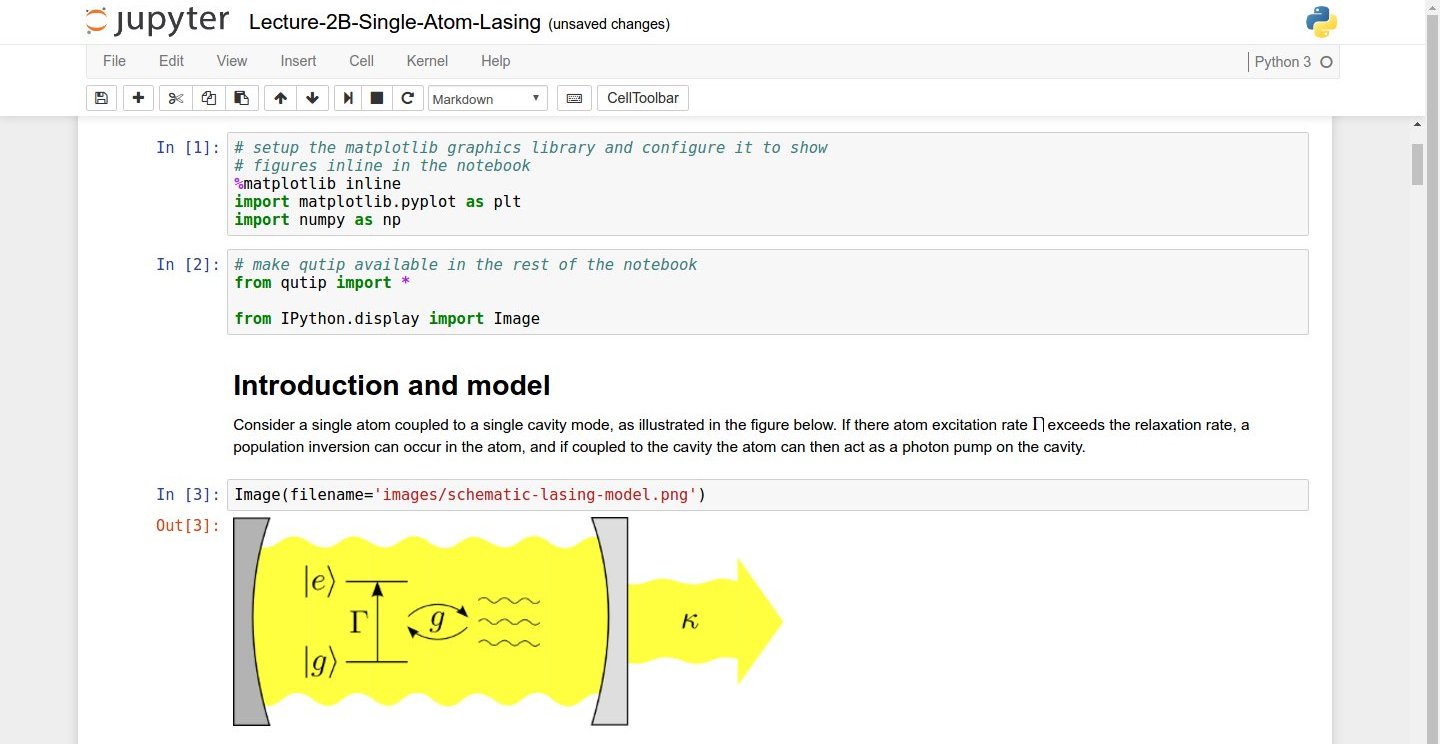
Screenshot of a Jupyter Notebook on quantum mechanics by Robert Johansson
How It’s Stored
- The notebook file is stored in a format called JSON.
- Just like a webpage, what’s saved looks different from what you see in your browser.
- But this format allows Jupyter to mix source code, text, and images, all in one file.
Code vs. Text
Jupyter mixes code and text in different types of blocks, called cells. We often use the term “code” to mean “the source code of software written in a language such as Python”. A “code cell” in a Notebook is a cell that contains software; a “text cell” is one that contains ordinary prose written for human beings.
The Notebook has Command and Edit modes.
- Open a new notebook from the dropdown menu (that says ‘New’) in the top right corner of the file browser page.
- Each notebook contains one or more cells that contain code, text, or images.
- If you press Esc and Return alternately,
the outer border of your code cell will change from gray/blue to green.
- The difference in color is subtle.
- These are the Command (gray) and Edit (green) modes of your notebook.
- In Command mode, pressing the H key will provide a list of all the shortcut keys.
- Command mode allows you to edit notebook-level features, and Edit mode changes the content of cells.
- When in Command mode (esc/gray),
- The B key will make a new cell below the currently selected cell.
- The A key will make one above.
- The X key will delete the current cell.
- The Z key will undo your last cell deletion.
- All actions can be done using the menus, but there are lots of keyboard shortcuts to speed things up.
- If you remember the Esc and H shortcut, you will be able to find out all the rest.
Command Vs. Edit
In the Jupyter notebook page are you currently in Command or Edit mode?
Switch between the modes. Use the shortcuts to generate a new cell. Use the shortcuts to delete a cellSolution
Command mode has a grey boarder and Edit mode has a green border. Use Esc and Return to switch between modes. You need to be in Command mode (Press Esc if your cell is green). Type B or A. You need to be in Command mode (Press Esc if your cell is green). Type X.
Use the keyboard and mouse to select and edit cells.
- Pressing the Return key turns the border green and engages Edit mode, which allows you to type within the cell.
- Because we want to be able to write many lines of code in a single cell, pressing the Return key when in Edit mode (green) moves the cursor to the next line in the cell just like in a text editor.
- We need some other way to tell the Notebook we want to run what’s in the cell.
- Pressing Shift+Return together will execute the contents of the cell.
- Notice that the Return and Shift keys on the right of the keyboard are right next to each other.
More Math
What is displayed when a Python cell in a notebook that contains several calculations is executed? For example, what happens when this cell is executed?
7 * 3
2 + 1
Solution
Python returns the output of the last calculation.
3
Key Points
Python programs are plain text files.
Use the Jupyter Notebook for editing and running Python.
The Notebook has Command and Edit modes.
Use the keyboard and mouse to select and edit cells.
The Notebook will turn Markdown into pretty-printed documentation.
Markdown does most of what HTML does.